Web UI
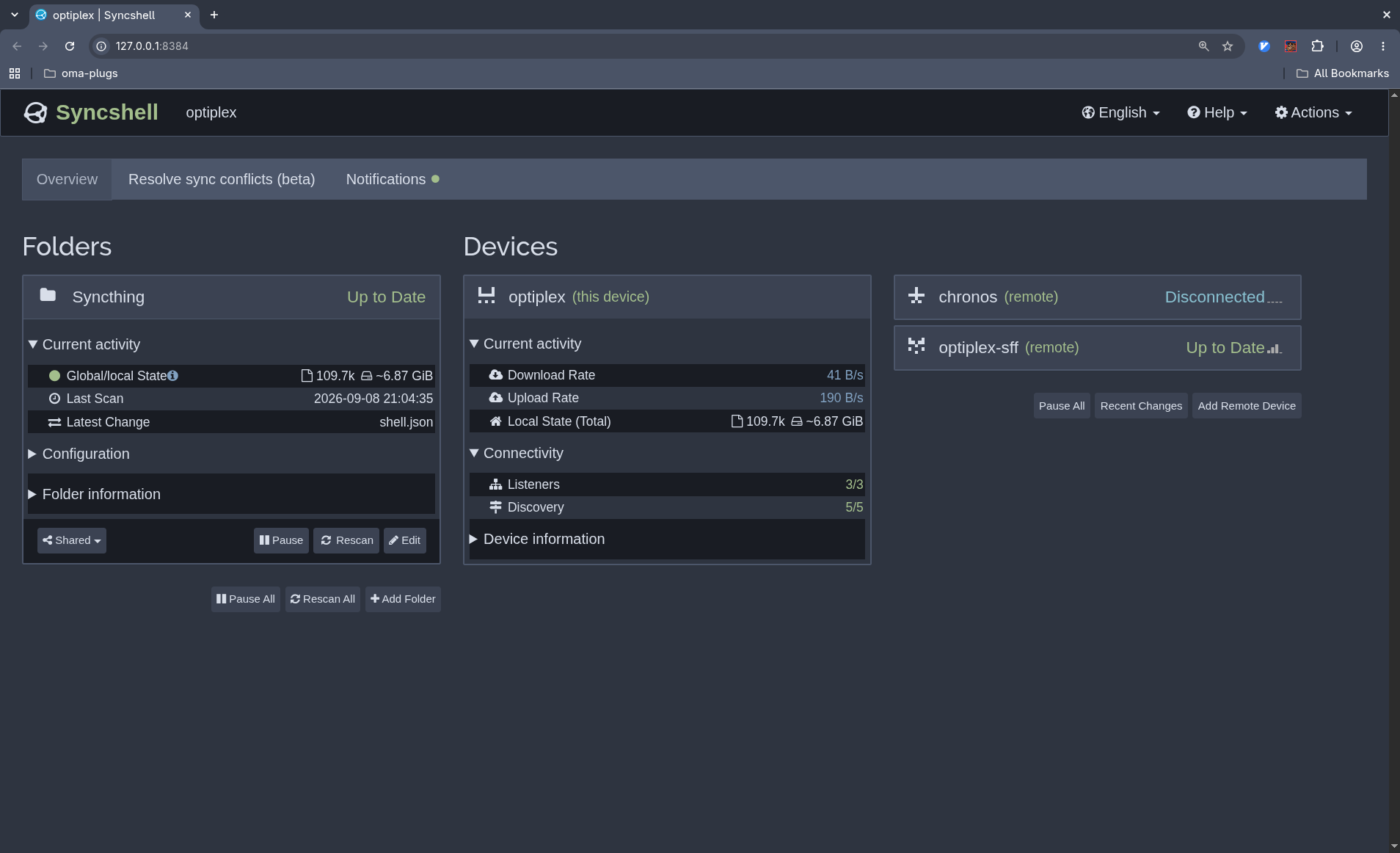
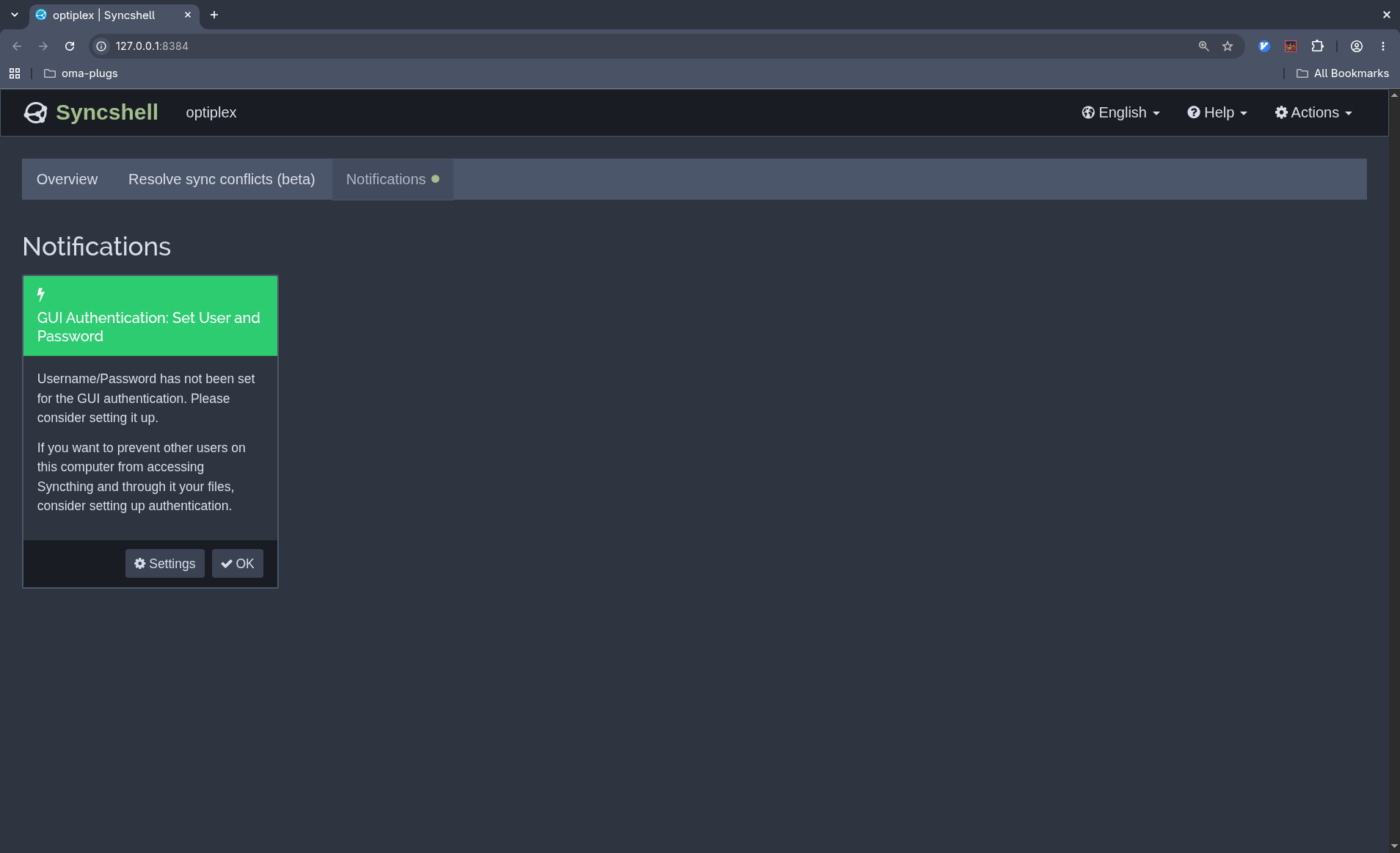
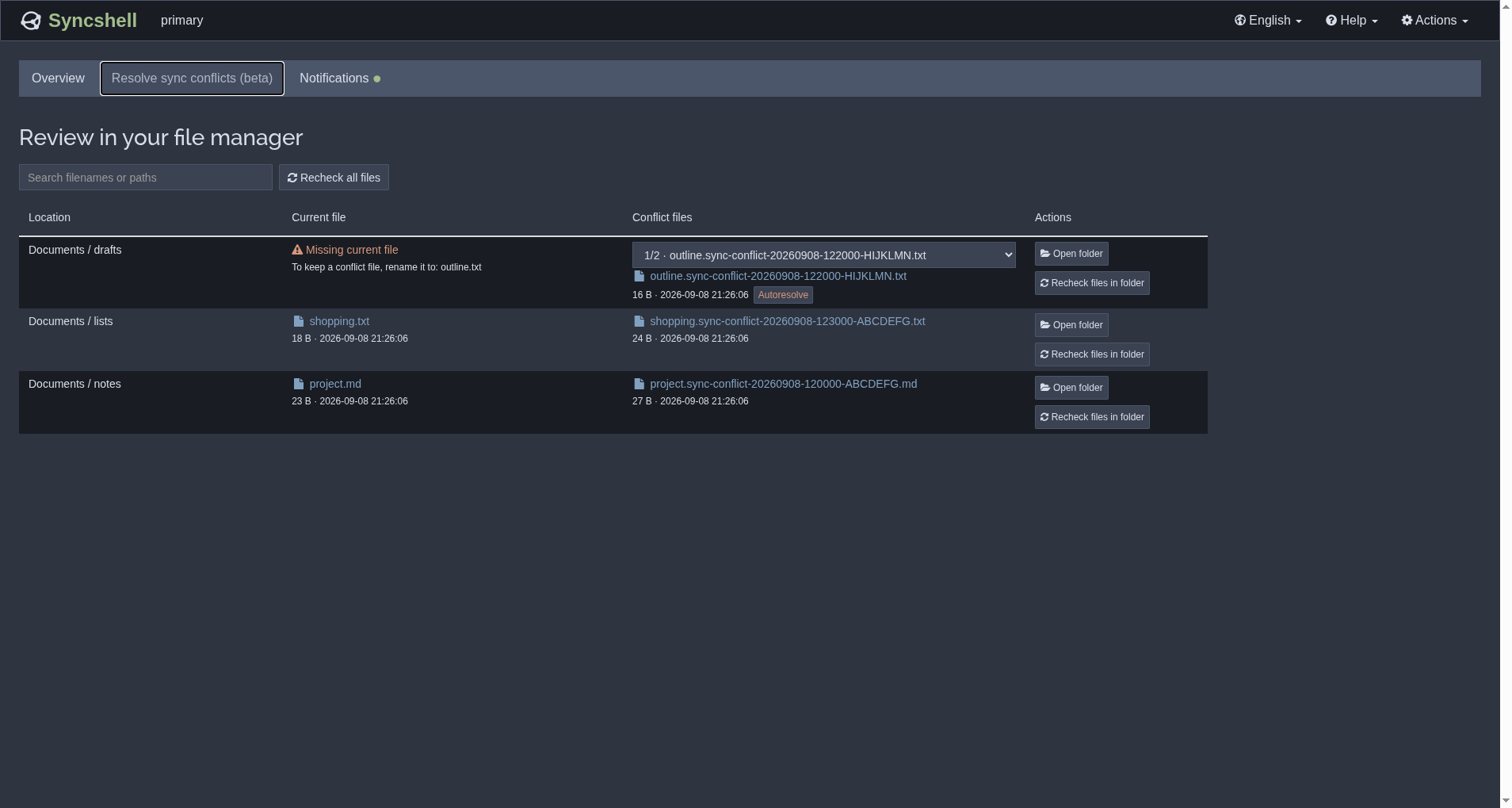
A clearer view of Syncthing folders, devices, notifications, and conflicts.
Included with the plugin's current 0.1.8 source. A standalone release archive is planned. Screenshots show the 0.1.8 development preview.
Use it today
Section titled “Use it today”Install the Omarchy plugin, then select Web UI. Its Modern and Omarchy profiles use the same interface; the Omarchy profile follows your desktop palette. Syncthing continues to serve the page and authenticate access.
The current source includes the redesigned Preact interface. The latest 0.1.7 tag predates this port. A standalone Web archive will have its own release and installation instructions when published.
What it shows
Section titled “What it shows”- Overview: folders and devices, with current activity separated from configuration and identification details.
- Notifications: messages and pending actions in one place.
- Conflict review (beta): discover conflict files in Syncthing’s index and recheck folders. File actions need the optional desktop connection.
Install custom GUI assets
Section titled “Install custom GUI assets”Syncthing supports a complete replacement GUI through its GUI override
directory. Find that directory using syncthing --paths, with the same
configuration options and user as the instance you want to customize. The
STGUIASSETS environment variable can select another asset root.
For a source build, follow the
Web UI source instructions.
The current build commands, run from that checkout’s webui/ directory, are:
npm cinpm run buildCopy the contents of dist/ into a named directory such as syncshell-modern/
beneath your instance’s GUI override directory. The result must have
syncshell-modern/index.html, alongside its assets and license files. Avoid
overwriting another installer’s existing profile.
Restart your Syncthing instance after first installation so the theme selector lists the new profile. Select syncshell-modern in Syncthing’s GUI theme setting. Open your usual Syncthing address; no separate web server is needed. See Syncthing’s GUI documentation and custom GUI support.
Update or remove
Section titled “Update or remove”For a plugin-managed profile, update or remove it through the plugin. For a manually installed profile, replace its assets with your next verified build. To remove it, select Syncthing’s default theme first, then remove only the profile directory you installed. Your synchronization configuration and files are independent of the GUI assets.
Local file actions
Section titled “Local file actions”Open the page through the plugin to enable local file actions. Syncthing must run on the same desktop, as the same user. Containers, tunnels, relative paths, and symlinked paths are unsupported for these actions.
File links open the containing directory. Autoresolve only restores a conflict file’s original name when that name is absent; it does not merge contents or replace an existing file. Reopen through the plugin if its core restarts. Discovery and rechecks remain available without desktop access.
The current interface is tested against Syncthing v2.1.3. It retains Syncthing attribution and licenses. For engine behavior, see the Syncthing documentation.